|
Northern Software Developments Limited
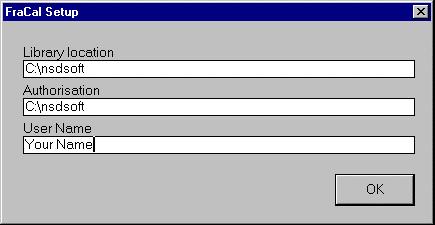
1. Install the Dynamic Link Library "Salflibc.dll". This is supplied in a zip file "Salflibc.zip". Unzip this file into the "c:\windows" directory. Alternatively, it may be placed in the same directory as the software. If more than one software package is chosen, only one copy of the .dll will be required if it is placed in the c:\windows directory. This path is always searched by programs requiring .dll files. This file is now generally supplied with the main software distribution and is no longer separate. It will install into the software directory by default. 2. Install the Software. Typically, these could be placed in "c:\nsdsoft", and desktop shortcuts set up to point to the .exe files. You may wish to modify the shortcuts to change the "Start in" directory. The programs will then search this "Start in" path for their input files. 3. Activate the program by double clicking the Icon. In a few seconds, the program will fail to find an authorisation and display an appropriate message. Press the "Exit" button and the program will start in demonstration mode. On first startup. You will be prompted for more information. Fill it in, typically as shown below:
|
|
|
|
|
© - Copyright 2000 |